How to upgrade to Pro
Upgrading takes a couple of minutes and happens inside TidyTrack. You need to be a workspace owner or admin, and a credit or debit card.
-
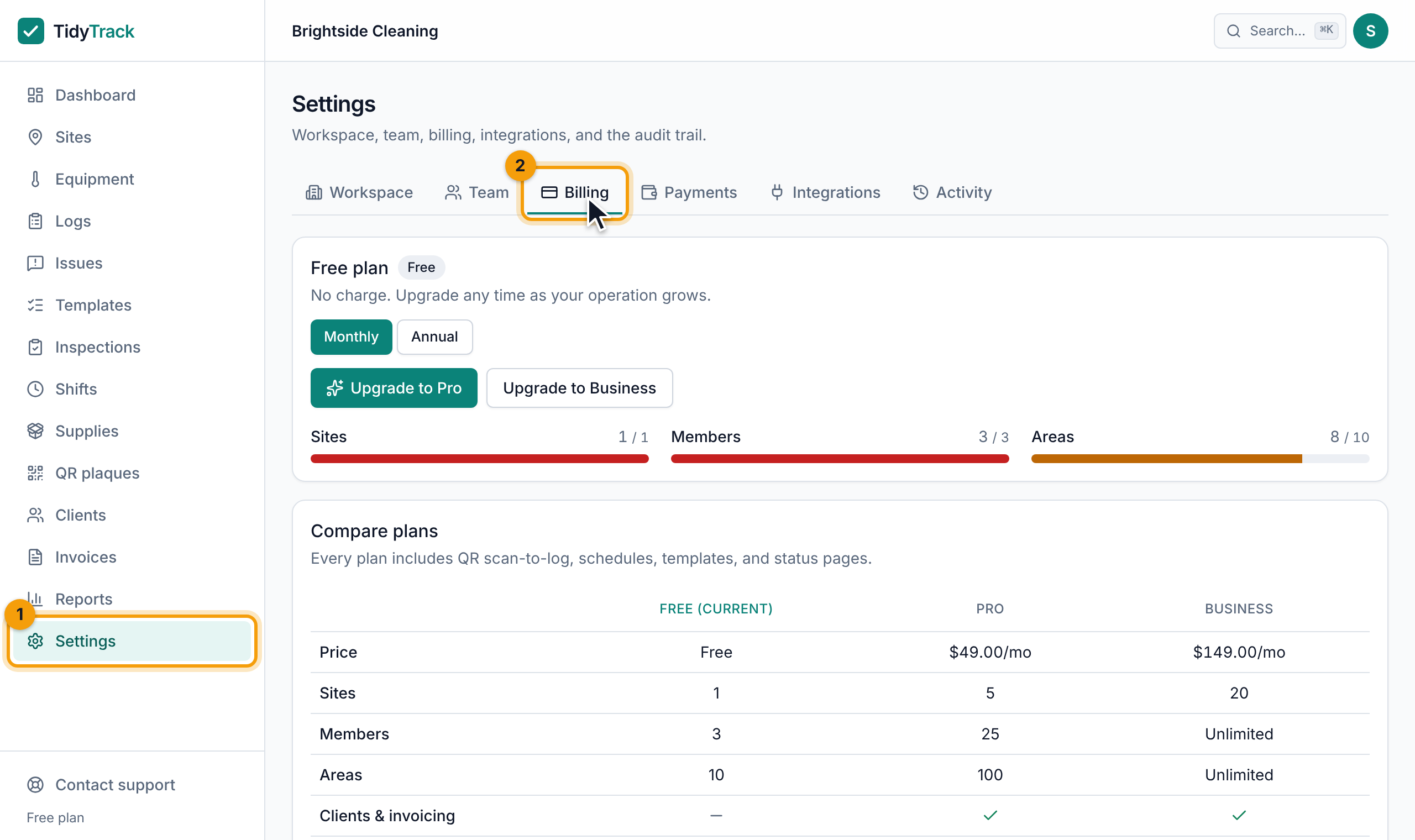
1Open Settings, then Billing
Sign in to TidyTrack as a workspace owner or admin. Select Settings in the sidebar, then the Billing tab.
Only owners and admins see the upgrade buttons. Anyone else sees a note asking them to contact an admin.
-
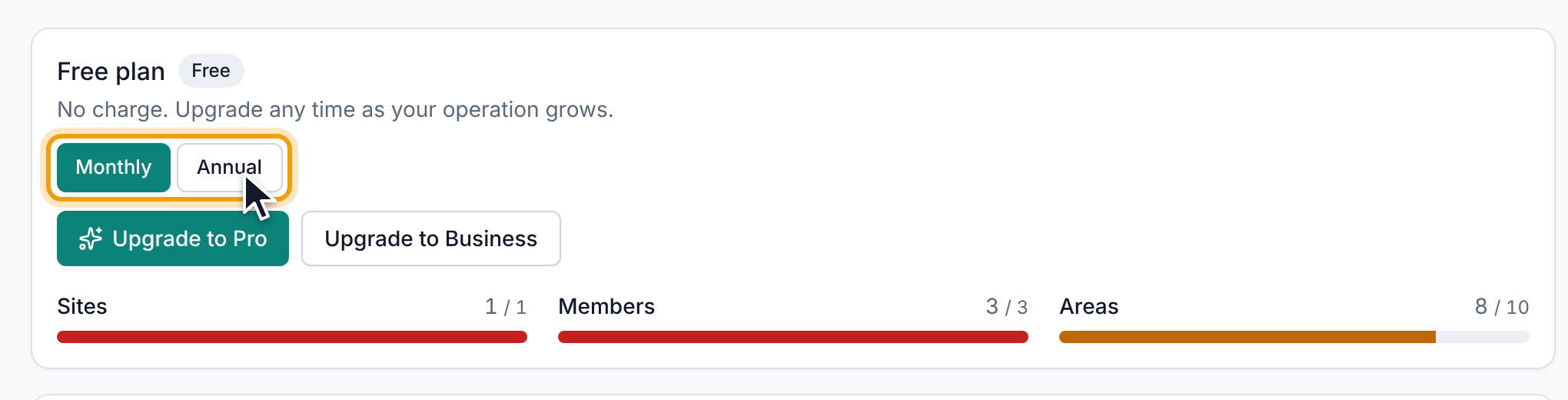
2Choose monthly or annual billing
Pick Monthly or Annual above the upgrade buttons. Annual billing is paid once a year.
-
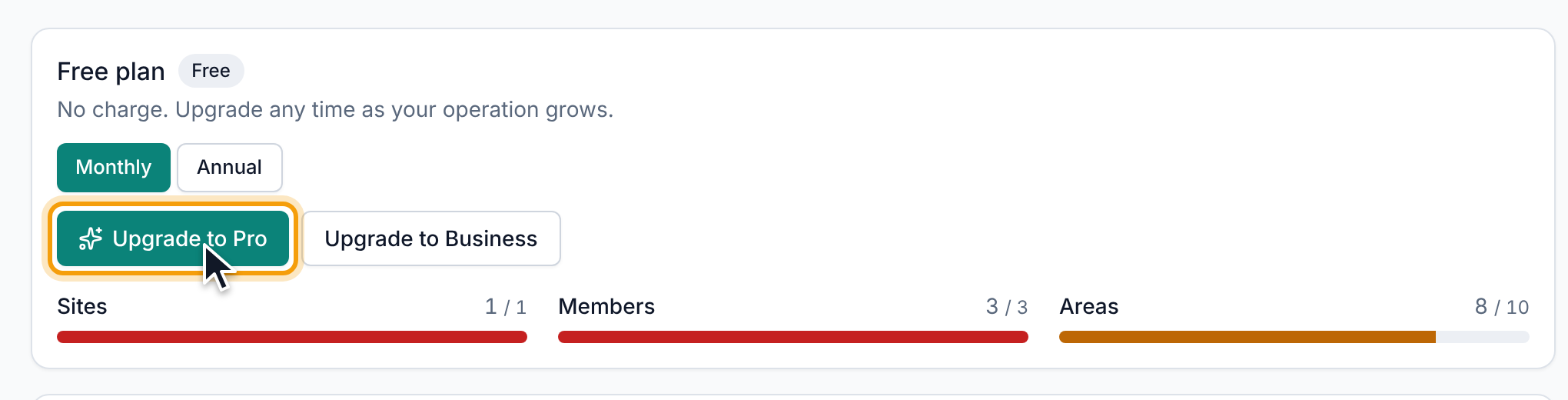
3Select Upgrade to Pro
Select Upgrade to Pro. TidyTrack opens a secure Stripe checkout page for your workspace. The same steps work for Business.
-
4Pay on the Stripe checkout page
Enter your billing email and card details, then confirm the payment. Card details go straight to Stripe; TidyTrack never sees or stores them.
Stripe emails a receipt to the billing email you enter.
-
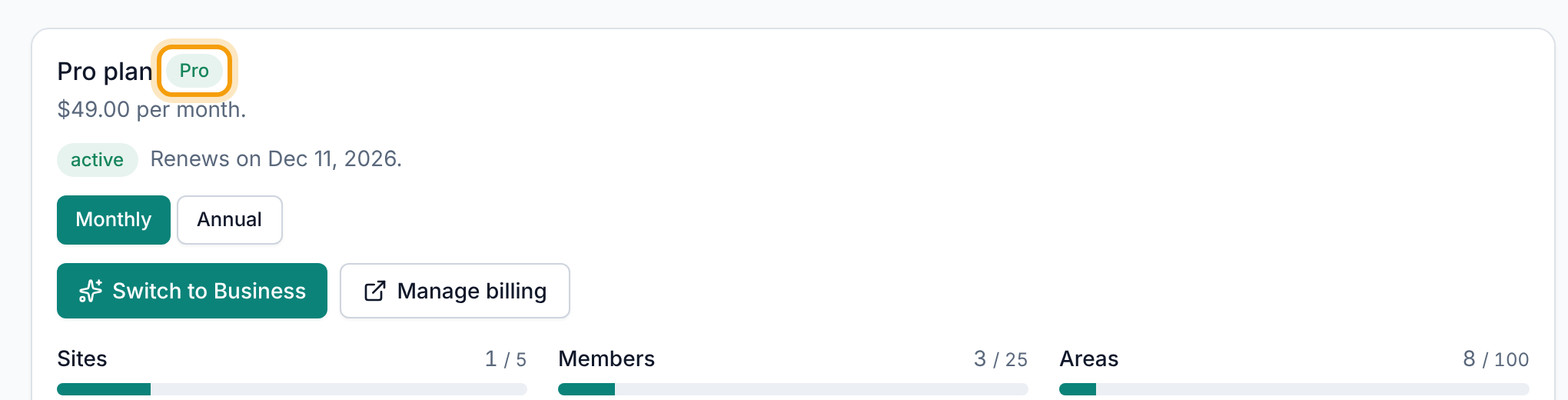
5Back in TidyTrack, Pro is active
After payment, Stripe sends you back to the Billing tab. TidyTrack confirms the upgrade in a few seconds and the plan changes to Pro, with your new limits shown below it.
Your sites, areas, QR posters and cleaning history stay exactly as they were.
Ready to upgrade?
Sign in and open the Billing tab. Questions about plans or billing go to [email protected].